Device & Browser Compatibility Guide: Cross-Platform Sadhana Support
Battery Optimization & Operating System Sleep Management
Modern mobile operating systems are aggressively engineered to terminate background web applications to extend battery life. Understanding how each operating system handles background processing ensures your chanting sessions run smoothly without unexpected pauses:
- Android Battery Optimization Whitelist: On Android devices (especially Samsung, Xiaomi, and OnePlus phones with aggressive task managers), open Settings > Apps > Chrome > Battery and select Unrestricted. This prevents the OS from suspending the audio listener during long morning sessions.
- HTML5 Screen Wake Lock API: The Naam Jap Voice Counter uses the Screen Wake Lock API to keep your display gently illuminated at low power, preventing your phone from going into deep sleep while you are actively chanting.
- Bedside Sleep Timer Pod (Night Sadhana Protection): For devotees who chant in bed before sleep, configure the Bedside Sleep Timer (5, 10, 15, 30, 45, 60 minutes or a 108-Mala cutoff). Once time expires or your round finishes, audio listening automatically disengages, preventing battery drain while you rest peacefully.
- Stealth Mode Power Conservation: Enabling Stealth Mode replaces the colorful UI with an ultra-low-power pure black OLED screen, pairing silent haptic vibration with near-zero screen power consumption.
Responsive Design & Lightweight Audio Processing
The voice counter is purposefully engineered to operate smoothly across a wide range of devices without requiring heavy processing power. Whether running on a modern multi-core laptop or an everyday entry-level smartphone, the lightweight client-side JavaScript architecture processes microphone events efficiently, keeping the user interface smooth and responsive even during brisk japa sessions.
Our Universal Access Mission: Any Device, Anywhere
When creating a spiritual companion for daily prayer, one universal principle matters most: zero artificial technological barriers. Whether a devotee is using an affordable five-year-old Android smartphone in a rural village in Uttar Pradesh, a flagship Apple iPhone 15 Pro in London, or an office laptop in Mumbai, the Naam Jap Voice Counter is engineered to load instantly in under one second, consume minimal battery power, and deliver smooth, responsive performance.
Because the counter is built on modern Progressive Web App (PWA) web standards rather than heavy 200-megabyte native mobile app downloads, you do not need an App Store account, credit cards, or large data downloads to begin your sadhana.


Cross-Platform Compatibility Matrix
| Platform / OS | Recommended Browser | Voice Mode | Touch & Auto Mode | Offline PWA Support |
|---|---|---|---|---|
| Android 8.0+ | Google Chrome, Brave, Edge | Full Support (Fastest) | Full Support | Full Support |
| Apple iOS (iPhone/iPad) | Apple Safari (iOS 14.5+) | Full Support (Foreground) | Full Support | Full Support |
| Windows 10 / 11 PC | Chrome, Edge, Brave | Full Support | Full Support | Full Support |
| macOS (MacBook/iMac) | Chrome, Safari, Brave | Full Support | Full Support | Full Support |
| Linux / Chromebook | Chromium, Chrome | Full Support | Full Support | Full Support |
By default, smartphones lock their screen after 30 to 60 seconds of inactivity to save battery. The Naam Jap Voice Counter uses the HTML5 Screen Wake Lock API. As long as your active chanting session is running, the screen remains gently awake at low brightness so your count is always clearly visible at a glance.
Special Guidelines for Apple iPhone Users (iOS Safari)
Apple enforces strict privacy and power-management rules across iOS Safari. To ensure uninterrupted chanting on iPhones:
- Use Safari Directly: Do not open the link inside in-app web views (such as clicking a link inside Facebook or WhatsApp). Always open
https://naamjapvoicecounter.comdirectly inside the official Safari app. - Keep Safari in Foreground: iOS suspends microphone input when you switch to another app or lock the physical screen. Keep your phone resting nearby with Safari open.
- Add to Home Screen: Tap the Share button at the bottom of Safari, scroll down and tap Add to Home Screen. This launches the application in clean standalone fullscreen mode without URL search bars.
Using the Voice Counter on Desktop & Laptop Computers
Many devotees prefer keeping a dedicated laptop or desktop computer at their home puja altar for early morning sadhana. The Naam Jap Voice Counter is fully optimized for large-screen desktop displays across Windows, macOS, and Linux:
- Keyboard Shortcuts for Effortless Control: On desktop browsers, you can press the Spacebar to instantly increment touch counter counts, or press M to quickly toggle microphone voice listening on and off without reaching for your mouse.
- Large Format Visual Bead Counter: On widescreen monitors, the counter displays an expansive 108-bead radial graphic that fills with golden light as you complete each repetition, offering a beautiful visual anchor for your eyes during deep meditation.
- Multi-Monitor Productivity Setup: If you work from home with multiple screens, you can keep the counter running quietly in a side browser window at low brightness, allowing you to complete micro-rounds between work tasks.
Brave Browser Setup & Desktop Microphone Permissions
Brave Browser is renowned for its aggressive tracking protection, but its built-in shields disable the browser's speech recognition engine by default. If the voice counter shows an error or remains silent in Brave, follow this quick 30-second fix:
- Open a new tab in Brave and paste
brave://settings/systeminto the address bar. - Locate the toggle named "Use Google services for speech recognition" and switch it to ON.
- Return to
https://naamjapvoicecounter.comand refresh the page. - If the browser previously denied microphone access, click the padlock (🔒) or tune icon on the left side of the address bar, toggle Microphone to Allow, and tap our Retry Microphone button to start chanting instantly.
Transferring Sadhana to a New Device: Zero-Cloud Sync Suite
A common concern for spiritual practitioners when buying a new smartphone or switching from a phone to an altar tablet is: "Will I lose my 108-day sankalp streak and lifetime mala counts?"
With Naam Jap Voice Counter, you never lose your progress, and you never have to surrender your privacy to cloud databases or create user accounts. Our Zero-Cloud Sync Suite transfers your entire spiritual history in seconds:
- SnapQR Camera Migration (Under 2 Seconds): Tap Tools & Settings ➔ Device Sync on your old device and select SnapQR. An encrypted QR code appears containing your complete dataset. Scan it with your new phone's camera to instantly import your lifetime count, streaks, daily diary notes, and custom mantras.
- Offline Local Wi-Fi Host Sync: For sadhaks without mobile data or internet access, devices connected to the same home Wi-Fi network can pair directly as host and client, syncing counts locally.
- 6-Digit Ephemeral Connect Code (WebRTC P2P):** If camera scanning is unavailable, generate a 6-character secure code for a direct peer-to-peer browser pipe that automatically clears as soon as the sync completes.
Tablet & iPad Support for Temple & Ashram Use
Tablets provide the perfect hybrid experience: the portability of a smartphone combined with the expansive visual display of a laptop. When placed on a wooden bookstand on your altar, an iPad or Android tablet serves as an elegant, non-intrusive digital sadhana companion. The touch interface is optimized for large fingertip targets, ensuring seamless operation for senior practitioners and children alike.
Using Bluetooth Earphones, AirPods & Wireless Headsets
Wireless earbuds (such as Apple AirPods, Samsung Galaxy Buds, and neckband headsets) are popular choices for modern sadhaks who wish to chant hands-free while walking or commuting. When using Bluetooth audio devices with the Voice Counter:
- Bluetooth Audio Codec Latency: Standard Bluetooth headsets introduce a tiny transmission delay of 100 to 200 milliseconds. The voice counter algorithm incorporates an automatic latency compensation buffer so that completed counts register smoothly in real time.
- Single Earbud Mode: To stay aware of traffic and your surroundings while walking in outdoor parks or metro stations, place one earbud in your ear while keeping your other ear open. The single microphone will clearly capture your vocal chanting while keeping you completely safe in public spaces.
Smart TV and Big-Screen Group Chanting Setups
Many devotional families and community satsang circles prefer casting the Naam Jap Voice Counter to large living room Smart TVs or Android TV displays during collective evening kirtan. Using standard Google Cast or Apple AirPlay, you can project the large 108-bead circular counter onto your television screen. The entire family can participate together in group japa while watching the collective count milestone light up across the room, creating a joyful atmosphere of shared spiritual devotion.
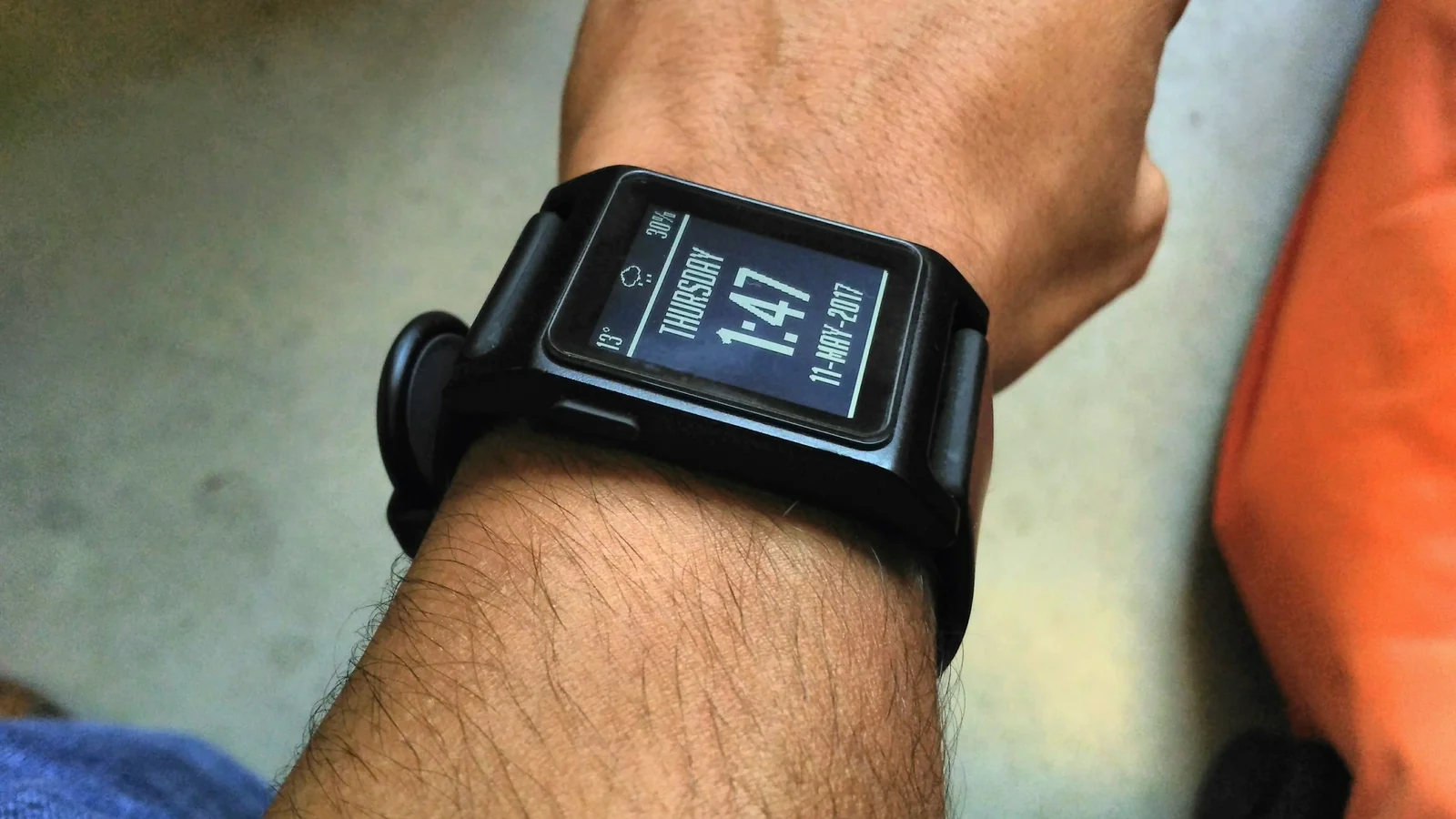
Smartwatch Screen Mirroring & Vibration Alerts
When practicing silent walking japa outdoors, you can mirror your smartphone screen to your smartwatch display via browser notifications. This allows you to glance at your wrist to verify milestone completions and feel subtle haptic vibration pulses every time you complete a full 108-bead round, keeping your phone safely tucked inside your pocket.
Multi-Tab Safety & Audio Stream Protection
If you accidentally open the counter in multiple browser tabs simultaneously, our built-in BroadcastChannel API coordinates listening sessions so only one active tab accesses the microphone, preventing duplicate count increments and acoustic interference.
Frequently Asked Questions About Device Compatibility
Does the Voice Counter work on Apple iPhone and iPad?
Yes. On iOS 14.5 and newer, open the website in Apple Safari. Keep the Safari tab open in the active foreground while chanting so iOS does not pause background microphone audio.
Can I install the website like a native app on my Android home screen?
Yes. In Google Chrome on Android, tap the three dots menu at the top right, select 'Install App' or 'Add to Home Screen', and launch the counter directly with full offline PWA support.
Why does voice recognition stop when my phone screen locks?
Mobile operating systems suspend browser JavaScript and microphone streams when the screen locks to conserve battery. Use our built-in Wake Lock toggle to keep your screen gently active during sadhana.
Which desktop browser offers the best performance?
Google Chrome, Microsoft Edge, and Brave Browser on Windows and macOS offer lowest latency and full multilingual speech support.
How do I get voice recognition working in Brave Browser?
In Brave Browser, open brave://settings/system and toggle ON 'Use Google services for speech recognition'. Then refresh the counter page and grant microphone permission when prompted.
How can I transfer my sadhana counts to a new phone without cloud login?
Tap the Settings icon at the top of the counter and choose 'Device Sync'. Select 'SnapQR' on your old device to show a QR code, then scan it with your new phone's camera to instantly migrate all counts, streaks, and custom mantras in under 2 seconds via peer-to-peer connection.